

Troubleshooting an EQUIPP Copilot Expired Session
Last updated December 16, 2025
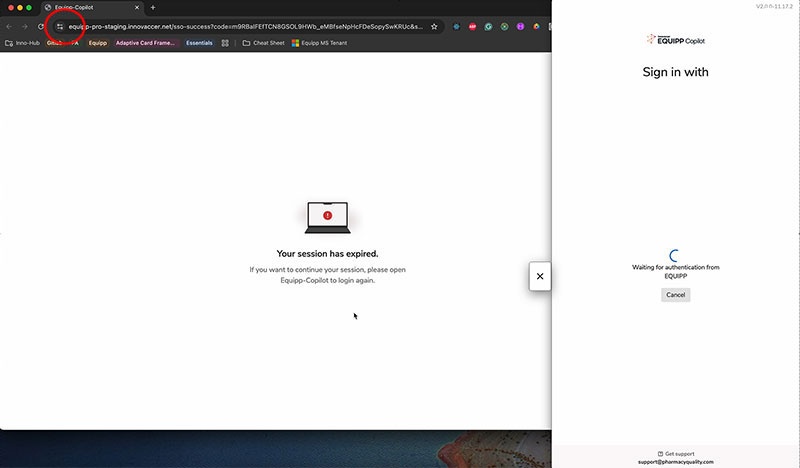
If an end user is using the most updated version of the Chrome browser, the first time they launch EQUIPP Copilot and select a login option - it will auto populate a browser (like normal) and a message will appear in the top left corner of the screen asking for permissions for EQUIPP Copilot to work with Google Chrome.
If they select no - this will result in an 'expired session' error message. They must then go back into Chrome, select the toggle option next to the URL field.
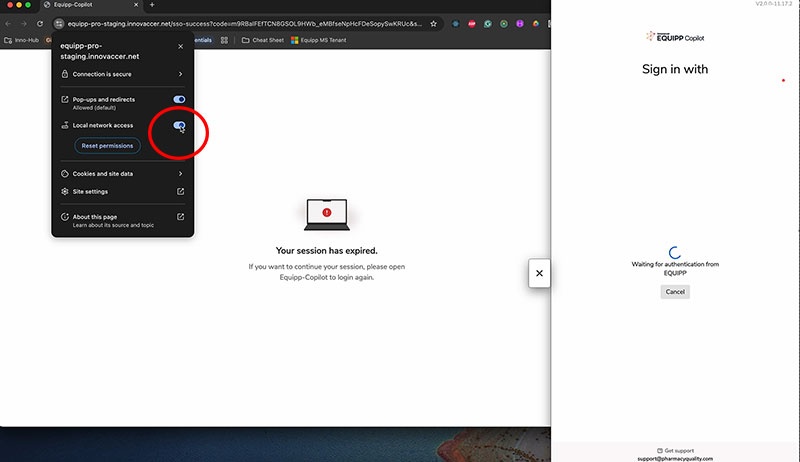
Next, look for the local network access field and switch to “on” to allow permissions.
If you click the reload button, after changing these settings, EQUIPP Copilot should load properly.
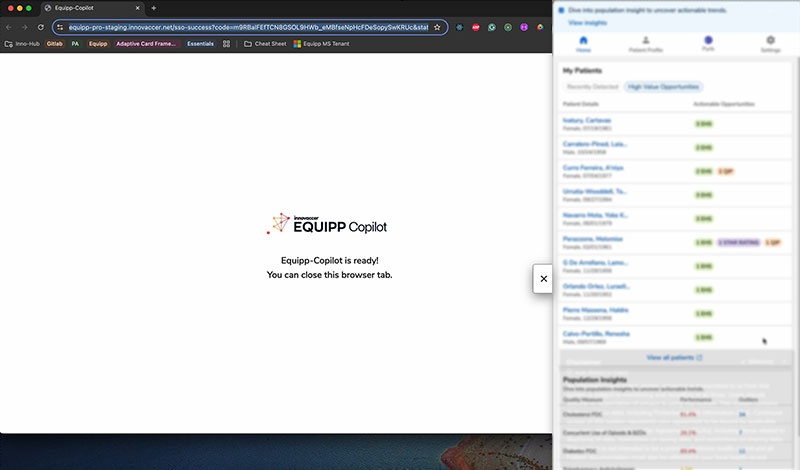
Future sign-ons into the app should recognize these new settings.
For further support, please submit a ticket as needed.