

EQUIPP® User Log-In (MFA)
Last updated March 20, 2026
Welcome to the NEW EQUIPP® ! Below are a few easy steps to get you logged in for the first time using MFA or Multi-Factor Authentication.
1. Log in at https://equipp.pharmacyquality.com
2. Enter your email address
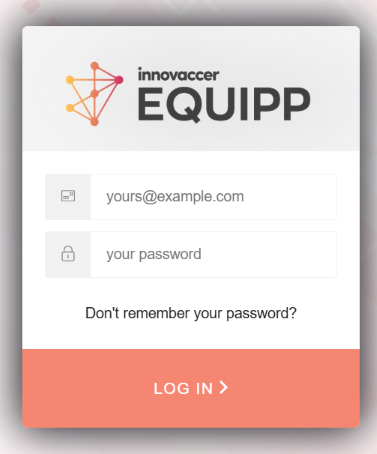
Password: Please click on the "Set a password" link within your Welcome email to confirm your account and login credentials.
Not working? Find the PQS invitation in your inbox to see the correct email. If you did not receive your email invitation in your inbox, please contact support@pharmacyquality.com or contact us online.
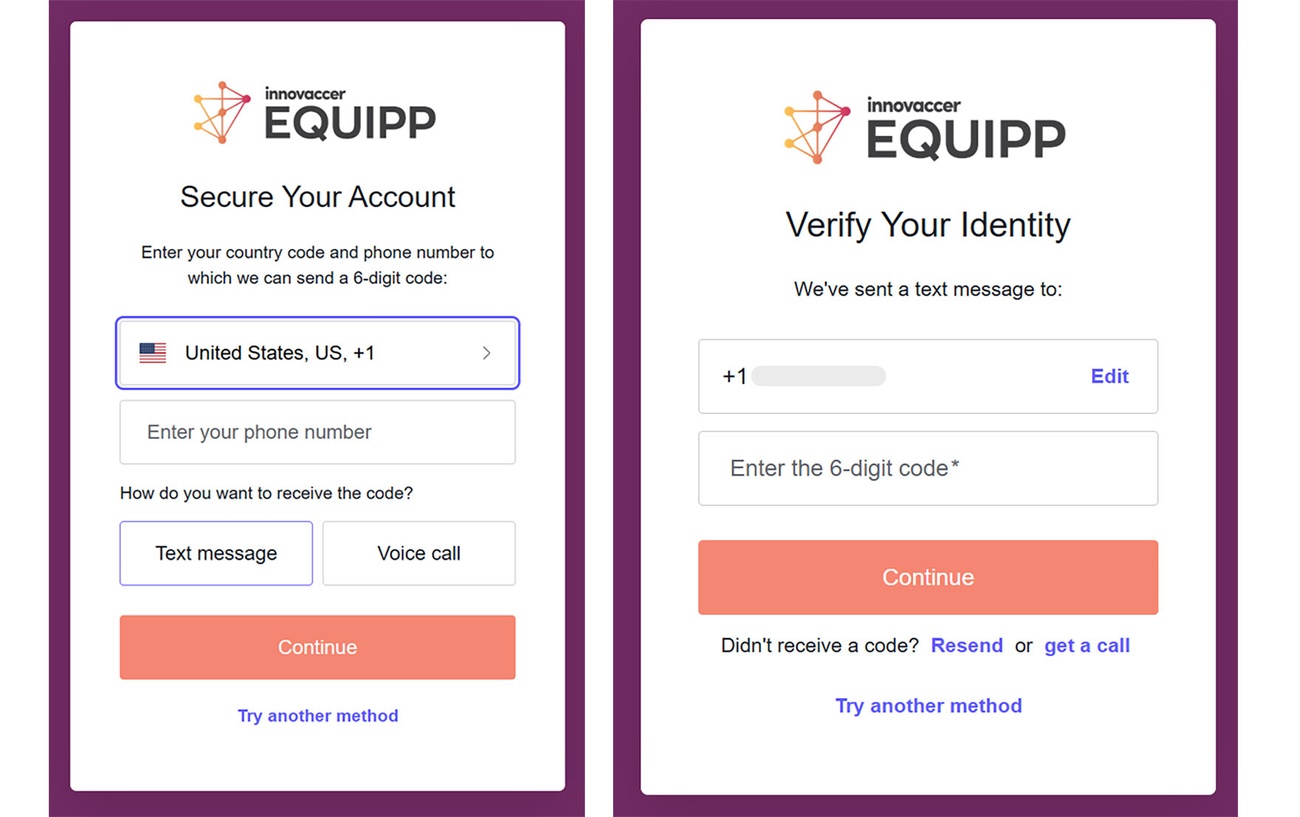
3. Authenticate your account
Enter the 6-digit code sent to your phone.
4. Log in with your new password to access your Performance Dashboard
If you need to reset or change the phone number attached to the MFA security feature, please see the instructions below:
- Once logged in successfully, click on the orange circle located in the top right portion of your EQUIPP Dashboard.
- Click 'Settings'
- A pop-up window will display with an option to change either the first and last name on the account, or 'Reset MFA'.
- Click 'Reset MFA'
- Another pop-up window will show confirming that you will be logged out and then be prompted to re-establish the newly desired phone number to be utilized in the MFA process.
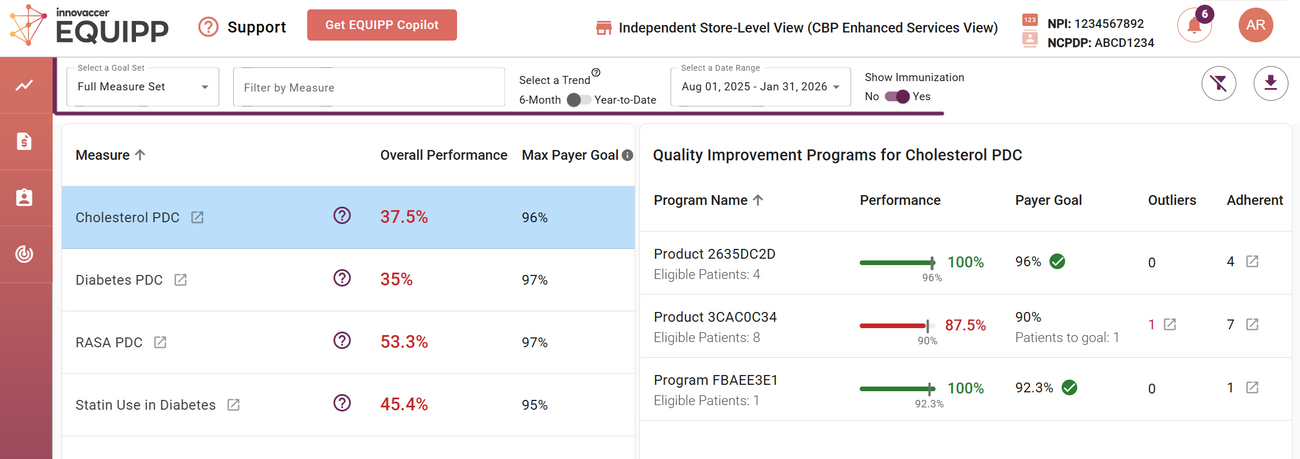
Welcome to the EQUIPP® Dashboard!
For log-in or other issues: email support at support@pharmacyquality.com or contact us online.
© 2026 PQS